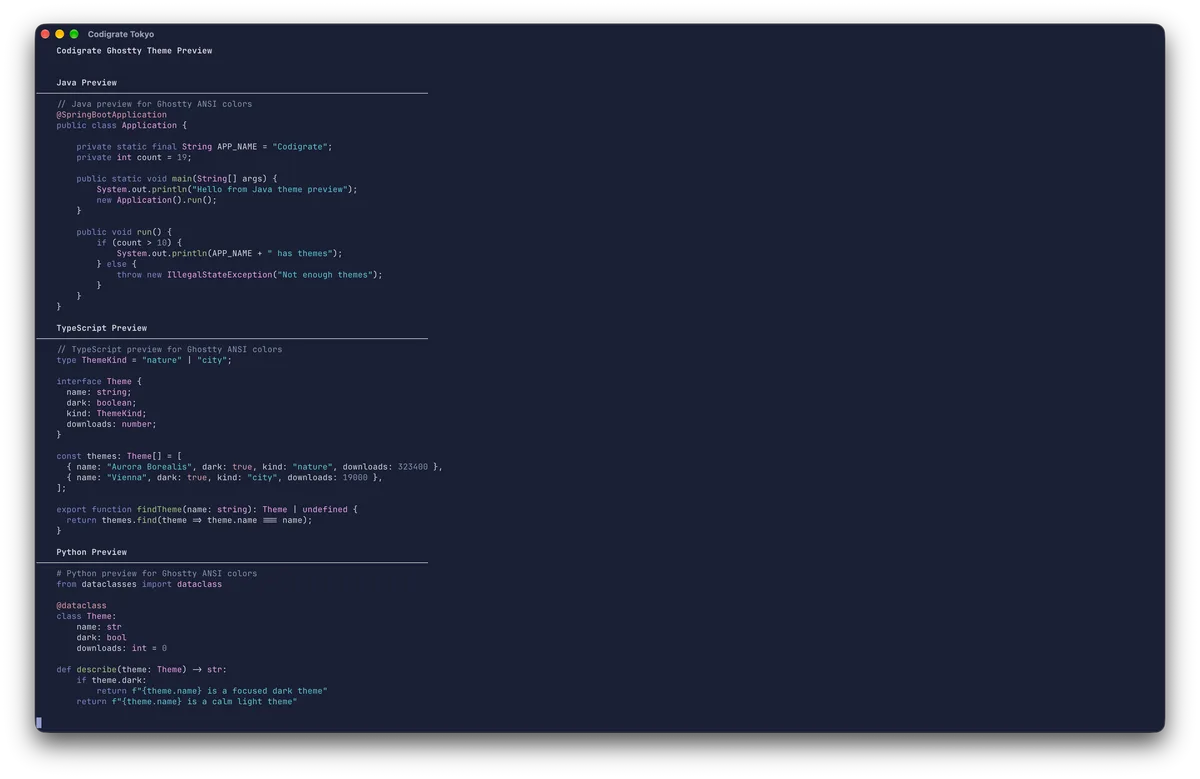
Inspired by Tokyo's neon-lit side streets, midnight skylines, and the quiet glow of lantern-lined alleys, this theme blends deep indigo shadows with electric violet highlights to create a sleek, futuristic coding atmosphere. Moody blues keep the editor calm and focused, while luminous purples, soft lilacs, and crisp cyan accents add clarity and energy to key syntax elements.
A dark theme from the Codigrate Cities collection, released 2026-01-07. Tags: Neon, Futuristic, Energetic.
A free download from codigrate.com under the MIT licence: add it to your cart, enter the e-mail address the download link goes to, and get the theme file with its install steps.
Getting started on Ghostty
- Download the theme with the Download button. It is one file named after the theme, for example Codigrate London; keep the name as is.
- Move the file into your Ghostty themes folder, ~/.config/ghostty/themes/ ( the same path on macOS and Linux ). If the folder is not there yet, create it in a terminal: mkdir -p ~/.config/ghostty/themes ( on a Mac, Shift+Cmd+G in Finder takes you to the path ).
- Open your Ghostty config: in Ghostty press Cmd+, ( Ctrl+, on Linux ), and the config file opens in your editor ( Ghostty creates it if you have none yet ). Add a line: theme = Codigrate London ( the file name ).
- Save, then press Shift+Cmd+, ( Ctrl+Shift+, on Linux ) in Ghostty to reload the config, and the theme is applied.
Tokyo color palette
Every named color of the Tokyo palette, free to download for MacOS, CorelDRAW and Figma.
Tokyo on every platform
- Tokyo for JetBrains (free)
- Tokyo for Xcode ($2.99)
- Tokyo for VS Code (free)
- Tokyo for Chrome (free)
- Tokyo for Firefox (free)
- Tokyo for Open VSX (free)
- Tokyo for Slack (free)
- Tokyo for MacOS Terminal (free)
- Tokyo for iTerm2 (free)
- Tokyo for Ghostty (free), this page
- Tokyo for Claude Code (free)
- Tokyo for Codex (free)
- Tokyo for OpenCode (free)
- Tokyo for Rhino (free)
- Tokyo for Zed (free)
- Tokyo for Sublime Text (free)
- Tokyo for Line
From the blog
- Anatomy of a Dark Theme: Tokyo: Anatomy of Tokyo, a dark IDE theme: an indigo night editor lit by neon violet and pink, crisp cyan strings, matcha green and the amber of paper lanterns.